Deployment and Maintenance / Raspberry Pi Official System Deployment
This document mainly describes how to run this system on a Raspberry Pi with the official Raspberry Pi OS installed.
Always use the latest version of DataFlux Func for operations
It is recommended to connect the Raspberry Pi to a wired network during operations
This article is based on Raspberry Pi 4B 8GB. Raspberry Pi 3B is too weak to run it
1. Preparation
Before installing DataFlux Func on a Raspberry Pi, some preparation is required.
1.1 Flashing the Raspberry Pi SD Card
It is recommended to use a clean official image to flash the SD card before installing DataFlux Func.
When flashing the SD card, you can choose:
-
Use the official
Raspberry Pi Imagertool for flashing -
Directly download the official
Raspberry Pi OSimage and flash it with a third-party tool
After flashing is complete, insert the SD card into the Raspberry Pi and power it on.
1.2 Enabling ARM 64-bit Mode
The official Raspberry Pi OS does not enable 64-bit mode for backward compatibility. Raspberry Pi 3B and later products support enabling 64-bit mode.
You can use the following command to open the Raspberry Pi configuration:
| Bash | |
|---|---|
1 | |
And add the following content to enable ARM 64-bit mode:
| Text Only | |
|---|---|
1 | |
Save and reboot the Raspberry Pi.
After reboot, you can verify with the following command:
| Bash | |
|---|---|
1 | |
The output is as follows:
| Text Only | |
|---|---|
1 | |
2. Installing DataFlux Func
The process of installing DataFlux Func on a Raspberry Pi is basically the same as installing it on a regular server.
2.1 Download
The download operation is the same as on other platforms. Just use the following command; the Script will detect the current environment architecture and download the ARM version resources.
| Bash | |
|---|---|
1 | |
If you need to download the DataFlux Func installation package for Raspberry Pi on a PC, specify --aarch64 in the download command
| Bash | |
|---|---|
1 | |
2.2 Installation
After the download is complete, enter the download directory and run the following command to install:
| Bash | |
|---|---|
1 | |
2.3 Initializing the System
After installation, use a browser to open the DataFlux Func initialization page and perform the operation.
- When on the Raspberry Pi itself, visit
http://127.0.0.1:8088 - When accessing the Raspberry Pi from another device, visit
http://{Raspberry Pi IP}:8088
2.4 Verifying the Installation
After installation, log in to this system, go to 'Management / About', and you can see that 'Architecture' is aarch64:
Subsequent operations are no different from those for DataFlux Func installed on a regular server.
3. Configuring Wi-Fi Connection
If you want the Raspberry Pi to connect to the network via Wi-Fi after installing DataFlux Func, please read this section
After installing DataFlux Func, the Wi-Fi control panel in the Raspberry Pi taskbar may show No wireless interfaces found,
and it may be impossible to connect to Wi-Fi through the UI. Meanwhile, the wired connection can access the network normally.
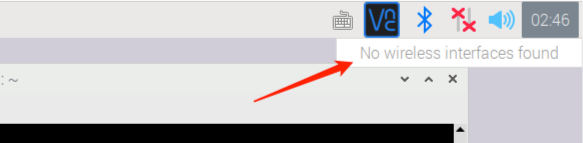
This issue was found during testing, but the cause is not yet clear. It does not affect the wired connection
3.1 Fixing the Raspberry Pi Wi-Fi Issue
To fix this issue, open the network configuration file:
| Bash | |
|---|---|
1 | |
Add the following configuration:
| Bash | |
|---|---|
1 2 3 4 5 | |
Save and reboot the Raspberry Pi.
3.2 Verifying the Fix
Use the following command to verify the Wi-Fi module:
| Bash | |
|---|---|
1 | |
The output is:
| Text Only | |
|---|---|
1 2 3 4 5 6 7 8 | |
Use the following command to verify the Wi-Fi network connection
| Bash | |
|---|---|
1 | |
The output is:
| Text Only | |
|---|---|
1 2 3 4 5 6 7 8 | |
Finally, open a browser. If you can access the Internet normally, it means the Wi-Fi issue has been fixed.
You can also directly use cURL to verify whether the network connection is successful:
| Bash | |
|---|---|
1 | |
Even if the Wi-Fi issue has been fixed, the Wi-Fi control panel in the taskbar may still show 'No wireless interfaces found'
X. Appendix
Here we record some Raspberry Pi-related content for reference.
X.1 Maximizing Raspberry Pi Performance
Open the /boot/config.txt file
| Bash | |
|---|---|
1 | |
Add the following content as needed:
| Text Only | |
|---|---|
1 2 3 4 5 | |
Even without the above settings, it works normally, and a metal case alone is sufficient for passive cooling
This setting involves overclocking. Under full load, passive cooling cannot be achieved with a metal case alone; at least a fan is required
More aggressive configurations can further improve Raspberry Pi performance, but will void the warranty
If your Raspberry Pi is damaged due to overclocking, the author of this article is not responsible. Please think twice before proceeding
X.2 Raspberry Pi Stress Test Program
You can use the Raspberry Pi stress test tool to test the operational stability of the Raspberry Pi (especially after overclocking)
Clone the repository
| Bash | |
|---|---|
1 | |
The original author's GitHub repository is at: github.com/xukejing/rpi-cpu-stress
Add execute permission
| Bash | |
|---|---|
1 2 | |
Start the stress test
| Text Only | |
|---|---|
1 | |
Then, you can see the following output in the terminal:
| Text Only | |
|---|---|
1 2 3 4 5 6 7 8 9 10 11 | |
a72 freq: 2100000: indicates that the current CPU clock frequency is 2.1GHztemp: 50634: indicates the temperature is 50.634 degrees Celsius
Do not keep the Raspberry Pi at high temperatures (above 80 degrees Celsius) for a long time